
A WordPress website suddenly displaying a 403 Forbidden error in wp-admin can be frustrating, especially when you need to publish content or manage your website.
But what happens when the login error is only the first sign of a much bigger security problem?
In September 2026, I investigated a WordPress login issue for a client using HostGator shared hosting. What initially appeared to be a simple access-permission problem led to the discovery of malicious PHP backdoors, suspicious .htaccess files, and thousands of malware detections across multiple websites.
This case study explains what I discovered, how I approached the cleanup, and what you can do if your WordPress website is facing a similar problem.
The Initial Problem: WordPress wp-admin Returning 403 Forbidden
The client contacted me because they could no longer access their WordPress dashboard to publish a blog post.
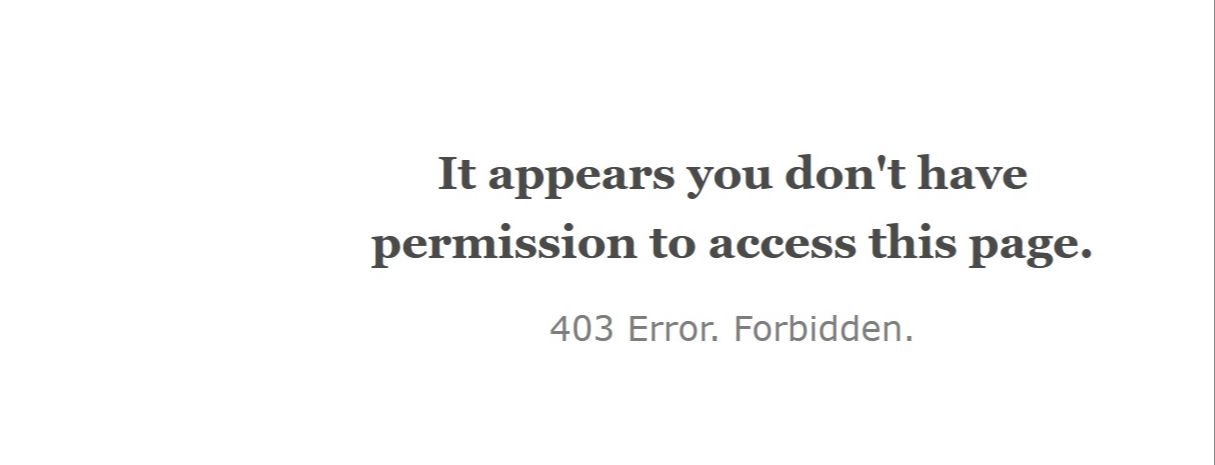
Instead of the usual login screen, the browser displayed:
403 Forbidden — You don’t have permission to access this resource.
A 403 error means the web server or an application security layer is denying the request. It doesn’t necessarily mean the WordPress username or password is incorrect.
Common causes include:
- Incorrect
.htaccessrules or file permissions - Security plugins blocking an IP address
- Hosting firewall or ModSecurity restrictions
- Server configuration problems
- Malicious changes made to website files
Initially, I checked whether the issue was related to the browser, VPN, or IP address.
When those checks did not resolve the problem, I investigated the hosting files directly.
That’s when the situation became more serious.
What I Discovered Inside the HostGator Account
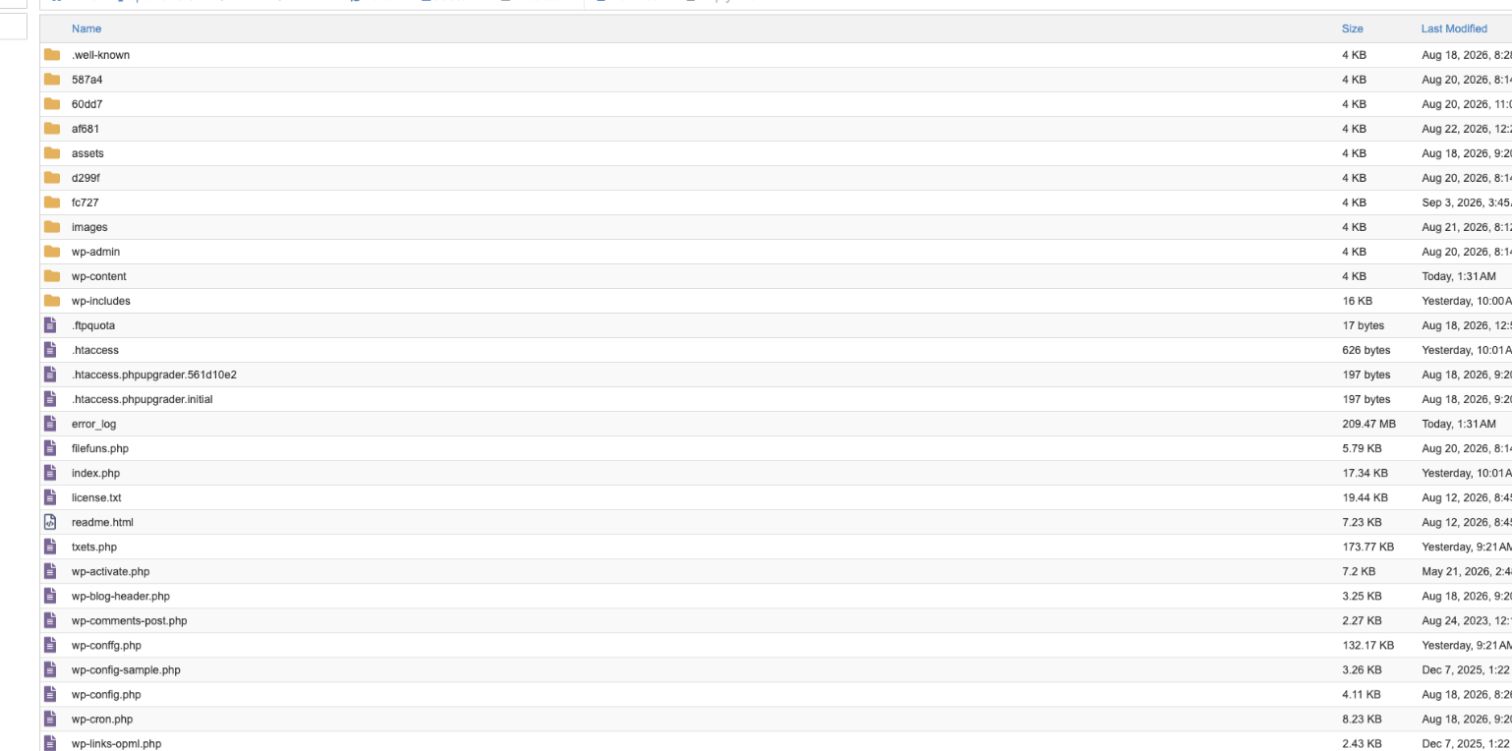
While inspecting the WordPress installation through cPanel File Manager, I noticed several unusual files and folders.
Some had randomly generated names, while others used PHP filenames that did not belong to the normal WordPress installation.
One particularly suspicious file was named tets.php.
Its contents included obfuscated PHP code, dynamically constructed function names, remote HTTP requests, and execution through eval().
Those characteristics indicated a malicious PHP backdoor or loader, rather than a legitimate WordPress component.
A backdoor can allow an attacker to execute additional code or regain access after visible malware has been removed.
I also discovered similar suspicious files on other websites within the same HostGator hosting account.
This was no longer an isolated WordPress login issue. It had become an account-wide malware cleanup investigation.
HostGator’s Malware Scan Revealed Thousands of Detections
I contacted HostGator support and requested a malware investigation.
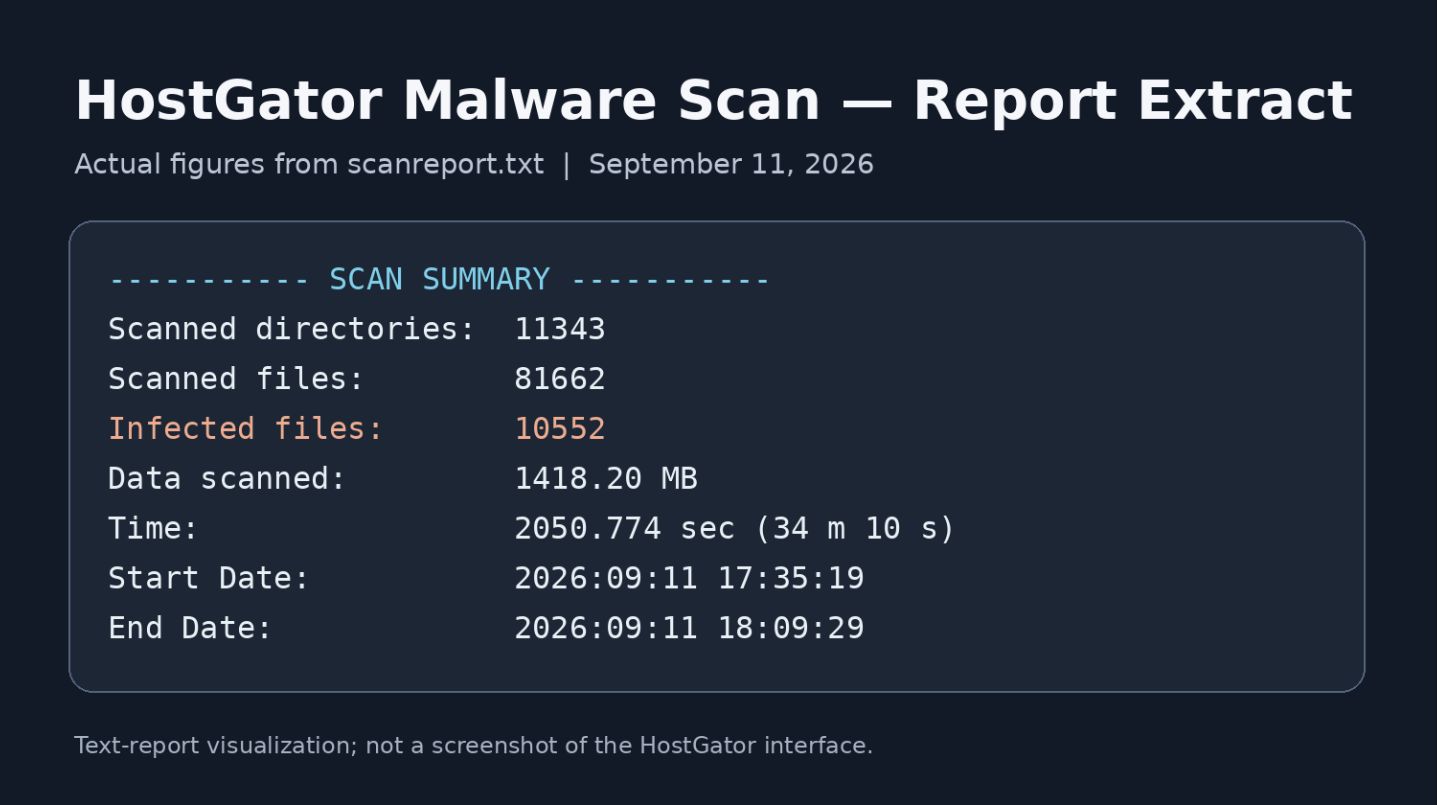
Their scan report identified more than 10,000 suspicious or infected file detections during the initial investigation.
The detections included:
| Detection type | What it can indicate |
|---|---|
| PHP injectors | Unauthorized code inserted into PHP files |
| PHP backdoors | Scripts permitting hidden or unauthorized access |
| PHP file hackers | Scripts capable of modifying other server files |
Suspicious .htaccess files | Potentially malicious access or rewrite rules |
| PHP files in unusual locations | Possible unauthorized scripts or persistence mechanisms |
These detections appeared in WordPress directories, plugin folders, uploads, and other account-level directories.
One especially unusual pattern was the presence of similarly named PHP files across unrelated directories.
For example, wp-cron.php and wp-blog-header.php are legitimate WordPress filenames when they appear in the correct installation locations. Finding suspicious copies in unrelated folders, however, requires investigation.
Another important lesson: 10,000 malware detections do not necessarily mean 10,000 different viruses. A scanner may detect many copies of the same malicious code, modified files, and suspicious access rules.
How Can Malware Spread Across Multiple WordPress Websites?
This is an important question for anyone hosting multiple WordPress installations within one cPanel account.
There are several possible entry points.
1. Vulnerable WordPress plugins or themes
An outdated plugin or theme may contain a security vulnerability that attackers can exploit.
Once malicious code executes with sufficient permissions, it may be able to modify additional files accessible to the hosting account.
2. Compromised hosting or FTP credentials
If an attacker obtains cPanel, FTP, SSH, or WordPress administrator credentials, they may be able to upload or modify files directly.
3. Poor isolation between websites
Multiple addon domains under one shared hosting account may use the same system user.
If one website is compromised, an attacker may be able to access other directories owned by that user.
4. Persistent backdoors and scheduled tasks
Some infections install additional PHP backdoors, modify configuration files, or create scheduled tasks.
Deleting the most obvious malicious file may not remove the mechanism that restores it.
In this case, the original entry point could not be conclusively established from the malware scan alone. The priority was containing the infection and verifying the affected websites rather than speculating about its source.
How I Approached the WordPress Malware Cleanup
Cleaning an infected WordPress website requires more than installing a security plugin and clicking Scan.
For this account, the process involved account-wide investigation, isolating suspicious PHP files, reviewing configuration changes, and verifying WordPress integrity.
Here is the practical workflow I recommend for similar incidents.
Step 1: Back up your website and database
Before deleting or changing infected files, create a complete backup of the affected hosting account.
Include website files, databases, configuration files, and relevant logs.
Store an independent copy outside the compromised hosting environment. Treat this as an evidence and recovery backup, not as a guaranteed clean restore point.
If the site handles customer information, evaluate whether the incident requires notification or other security-response measures.
Step 2: Scan the entire hosting account
If multiple websites are hosted together, scanning only one domain is insufficient.
Use the hosting provider’s malware scanner and inspect all relevant website directories.
In cPanel, examine the website files through File Manager and review available malware scan results.
Pay particular attention to:
- WordPress root directories
wp-content/plugins/andwp-content/themes/wp-content/uploads/wp-content/mu-plugins/- Hidden
.htaccessfiles - Scheduled cron jobs and account-level PHP configuration
A remotely accessible website scanner may miss malicious files that are not visible through ordinary web requests.
Step 3: Identify and isolate malicious PHP backdoors
Look for unusual PHP files, especially those using obfuscation, remote code retrieval, or dynamic code execution.
Indicators worth investigating include eval(), base64_decode(), gzinflate(), and curl_exec().
These functions are not automatically malicious. Their context matters.
In this case, the suspicious code combined multiple obfuscation techniques with hidden execution behavior.
Rather than blindly deleting every detected file, suspicious PHP samples were isolated in a quarantine area so that they could no longer be accessed through the affected websites.
For your own cleanup, keep quarantine evidence outside the public web directories, restrict access, and preserve an offline copy when necessary.
Step 4: Inspect suspicious .htaccess files
One of the most widespread findings in this incident involved suspicious .htaccess files.
A legitimate .htaccess file may control WordPress permalinks, redirects, caching, and access restrictions.
However, malicious or incorrect rules can interfere with access to important pages, including the WordPress dashboard.
If you are receiving a 403 Forbidden error:
- Back up the existing
.htaccessfile. - Check the WordPress root and relevant parent directories.
- Inspect unexpected rules and recently modified files.
- Compare the configuration against a trusted backup or known-good configuration.
- Test changes carefully and restore required security rules.
Do not delete every .htaccess file simply because it appears in a scanner report. Some are legitimate and necessary for website security.
Step 5: Verify and restore WordPress core files
A hacked WordPress website may contain modified core files.
If you have SSH access and WP-CLI installed, you can check WordPress integrity with:
wp core verify-checksums
This compares WordPress core files against official WordPress checksums.
You can also check supported plugins downloaded from WordPress.org:
wp plugin verify-checksums --all
Checksum verification is extremely useful, but a successful result does not mean the entire website is malware-free. It does not fully validate custom themes, uploaded files, databases, or every commercial plugin.
If core files are compromised, replace them with clean, trusted WordPress files. Affected plugins and themes should also be reinstalled from legitimate sources after preserving any necessary customizations.
Step 6: Review WordPress administrators and credentials
After a compromise, inspect all WordPress users for unknown administrator accounts.
Also review hosting-level access, FTP/SFTP users, and scheduled jobs.
Rotate exposed or potentially compromised credentials, enable two-factor authentication where supported, and regenerate WordPress authentication salts as part of recovery.
In this case, the HostGator cPanel password was changed, and anonymous FTP access was disabled.
Step 7: Rescan and verify the websites
This is one of the most important stages.
A cleanup is not verified simply because the homepage loads or because one malware file was deleted.
Run a fresh, full-account scan and compare the results with the earlier report.
Also check WordPress core integrity, homepage availability, dashboard access, important pages, forms, publishing functionality, and relevant server logs.
If malware returns, investigate remaining backdoors, credentials, scheduled tasks, vulnerable components, and any other websites sharing the hosting account.
The Results: Separating Quarantined Evidence From Active Website Files
The follow-up verification on September 22, 2026, provided an important distinction.
A fresh scan covered 139,834 files and reported 10,169 detections. However, all of those detections were inside the designated malware quarantine directory.
No malware detections were reported outside quarantine in that scan.
The three WordPress installations checked during final verification also passed their WordPress core checksum checks, and their public homepages returned HTTP 200 responses.
Fresh SHA-256 file baselines were created for future integrity comparisons.
This was a substantial improvement over the original infected state. However, a clean scan outside quarantine and successful homepage checks do not guarantee that every plugin, database entry, login workflow, or future security risk has been fully validated.
That is why ongoing monitoring and secure maintenance remain important after malware removal.
How to Prevent WordPress Malware From Coming Back
Once a WordPress installation has been cleaned, prevention becomes the next priority.
Keep WordPress core, plugins, and themes updated. Remove unused extensions, especially those that no longer receive security maintenance.
Use strong, unique credentials, protect administrator accounts with two-factor authentication, and maintain recoverable off-site backups.
For multiple important websites, consider separate hosting accounts or stronger isolation instead of placing everything under one shared hosting user.
Use a reputable website security scanner or firewall alongside regular integrity checks.
And remember that a malware scanner is only one part of website security. It cannot replace updates, access controls, backups, and proper incident investigation.
WordPress Malware Cleanup Checklist
- List every WordPress site on the hosting account, including staging sites.
- Back up files, databases, and relevant logs. Store a copy outside the affected account.
- Ask the host to scan the whole account. Review each site, scheduled tasks, and hosting access.
- Isolate suspicious files outside public web directories. Restore affected files from trusted sources.
- Review administrator accounts, rotate potentially exposed credentials, and enable two-factor authentication.
- Run a fresh account-wide scan. Record whether detections are in live site files or quarantine.
- Verify WordPress core checksums and test logins, publishing, forms, and key pages on each site.
Frequently Asked Questions
Does a WordPress 403 Forbidden error mean my website is hacked?
Not necessarily. A 403 error can result from incorrect permissions, .htaccess restrictions, security plugins, or a hosting firewall. Malware is one possible cause, but the error alone cannot establish that a website has been compromised.
How do I fix WordPress wp-admin 403 Forbidden on HostGator?
Start by testing /wp-login.php directly. Check the hosting error logs, security firewall events, .htaccess rules, and directory permissions. If you also find suspicious PHP files or malware detections, investigate the broader security incident before simply changing access rules.
Can one hacked WordPress site infect other websites?
Yes, under some hosting configurations. If multiple websites share the same system account and file permissions allow access between them, a compromise may spread. This is why malware investigations should consider the whole hosting account.
Why does WordPress malware keep coming back after deletion?
Recurring infections commonly indicate that the original vulnerability or another persistence mechanism remains. Possible causes include surviving PHP backdoors, scheduled tasks, compromised credentials, or infected plugins and themes.
Can I remove WordPress malware manually without paying for a security subscription?
Yes, manual cleanup is possible with sufficient technical experience and reliable access to website files, logs, and backups. Complex, multi-site infections require careful investigation, and professional assistance may be appropriate when the scope is unclear.
Will reinstalling WordPress remove all malware?
No. Replacing WordPress core files can remove malicious changes to core, but malware may remain inside plugins, themes, uploads, configuration files, databases, and other hosting-account directories.
Final Thoughts
The biggest lesson from this HostGator malware cleanup case is simple:
When multiple WordPress websites share a hosting account, you must investigate the entire account—not just the website showing the first error.
What started as a WordPress 403 Forbidden login problem revealed a much wider compromise involving malicious PHP files and suspicious configurations.
By isolating malicious code, verifying WordPress integrity, securing hosting access, and performing a fresh account-wide scan, it was possible to reach a much more trustworthy recovery state.
If your website has a 403 Forbidden error, suspicious PHP files, unexpected redirects, or malware that repeatedly returns, avoid deleting random files without a proper backup and investigation.
Need Help Removing WordPress Malware?
I’m Emam Hossain, a WordPress developer specializing in website troubleshooting, hosting management, migrations, malware investigation, and security remediation.
I work with WordPress websites hosted on platforms including HostGator, Namecheap, Hostinger, and other cPanel-based environments.
If your WordPress website has been hacked or you cannot access your dashboard, I can help investigate the problem, identify the affected components, and plan a safe cleanup.
A proper recovery isn’t just about making a website load again. It’s about understanding and removing the security problem behind the symptoms.
Technical references